Configurazione di Mailchimp
Prima di configurare il modulo, crea o seleziona il pubblico (audience) di Mailchimp destinato a ricevere le iscrizioni. In Mailchimp, recupera i seguenti dati:
- Una chiave API, disponibile nelle impostazioni relative alle chiavi API del tuo account.
- L'ID univoco del pubblico. Mailchimp lo mostra nelle impostazioni del pubblico; può inoltre apparire come
idall'interno del modulo di iscrizione integrato (embedded signup form) del pubblico stesso.
Mantieni riservata la chiave API. Inseriscila esclusivamente nelle impostazioni del modulo e proteggi l'accesso all'area di amministrazione di Joomla.
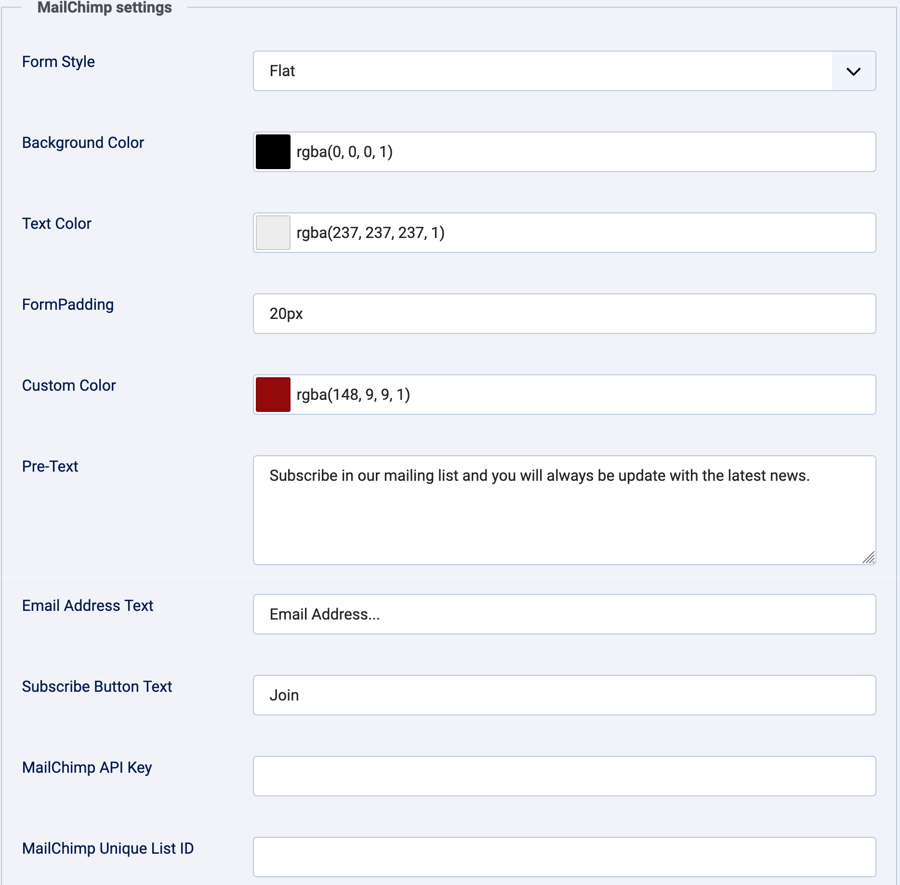
MailChimp settings
| Setting | Description |
|---|---|
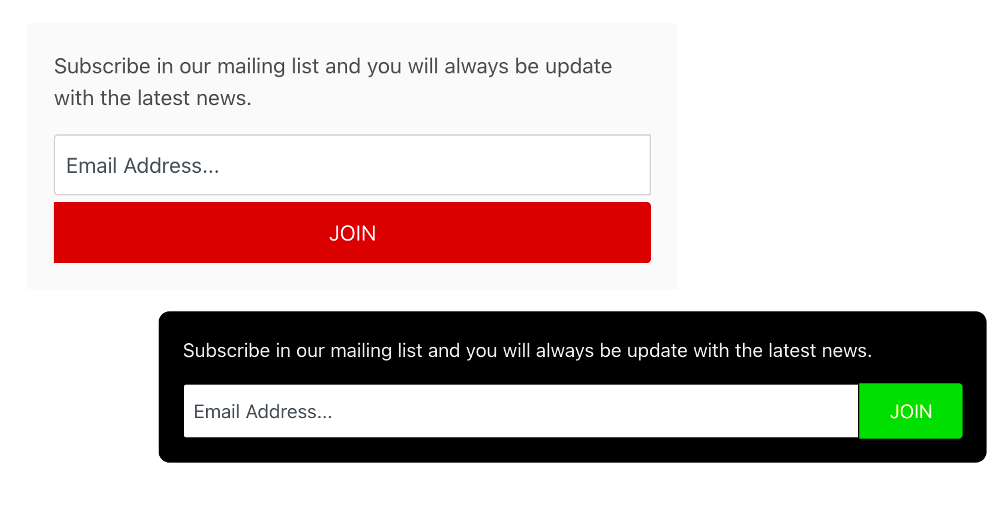
| Form Style | Default displays the standard form. Flat lays out the email field and button side by side where space permits. |
| Background Color | Optional background color for this module instance. |
| Text Color | Optional text color for this module instance. |
| Form Padding | Optional CSS padding value, such as 10px or 1em. Leave blank to use no module-specific padding. |
| Custom Color | Optional color used for the submit button. |
| Pre-Text | Optional text displayed above the form. |
| Email Address Text | Text shown in the email field before a visitor enters an address. |
| Subscribe Button Text | Label displayed on the submit button. |
| MailChimp API Key | API key for the Mailchimp account. |
| MailChimp Unique List ID | ID of the Mailchimp audience that will receive signups. |
Custom CSS
Use Custom CSS to add styles for this module. The form is inside a wrapper with an ID of chimp followed by the Joomla module ID (for example, chimp123). To target one instance only, use that wrapper ID as a selector:
#chimp123 .mailchimp_signup_form button {
    font-weight: bold;
}
Replace 123 with the module ID shown in the Joomla module editor. Selectors that do not use the wrapper ID may affect other signup modules or elements on the page.