People make the work
MX Team puts your people in focus.
Build a team showcase that feels like it belongs to your site. Start with your content, choose a visual style, then shape the experience for every screen.
A great team page does more than list names. It gives every person a clear place in the story of your organization.
Start with what you have
One module. Three ways to bring a team together.
Use Custom Items to curate profiles by hand, draw from Joomla Articles when your people already have editorial pages, or select a folder under your site's images directory and let its files become the showcase.
Folder mode can turn supported images into team entries and use MP4 files as video items. For file-based teams, descriptive filenames can supply names, roles, and short descriptions.
Custom
Hand-built profiles with images, roles, links, email, and social details.
Articles
Use published content, categories, tags, and article imagery.
Folder
Build a showcase from supported files inside your images folder.
Make it feel like you
Find the right rhythm for your story.
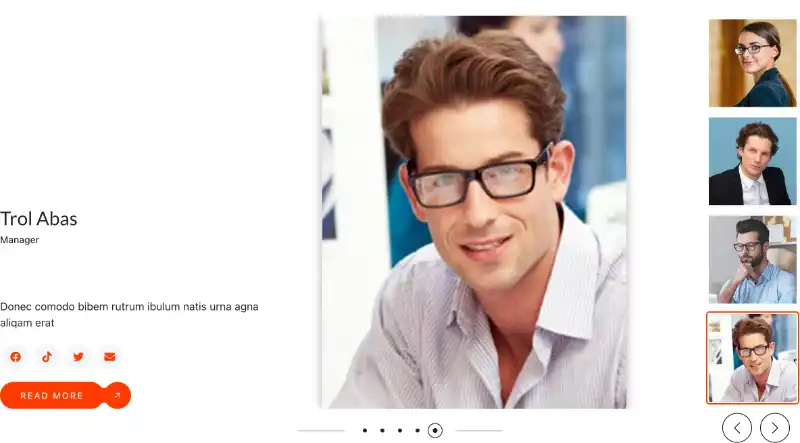
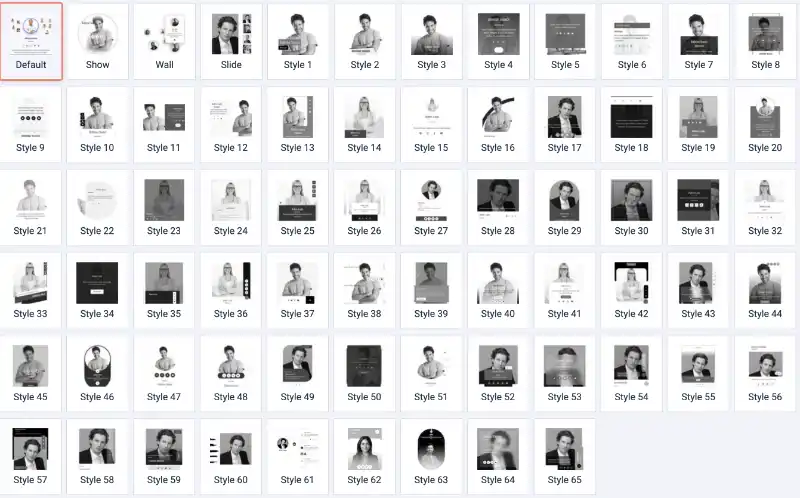
With 69 presentation styles, MX Team gives you room to explore. Choose a familiar grid, a moving slider, or a more expressive layout, then tune spacing, colors, and style-specific settings where they are available.
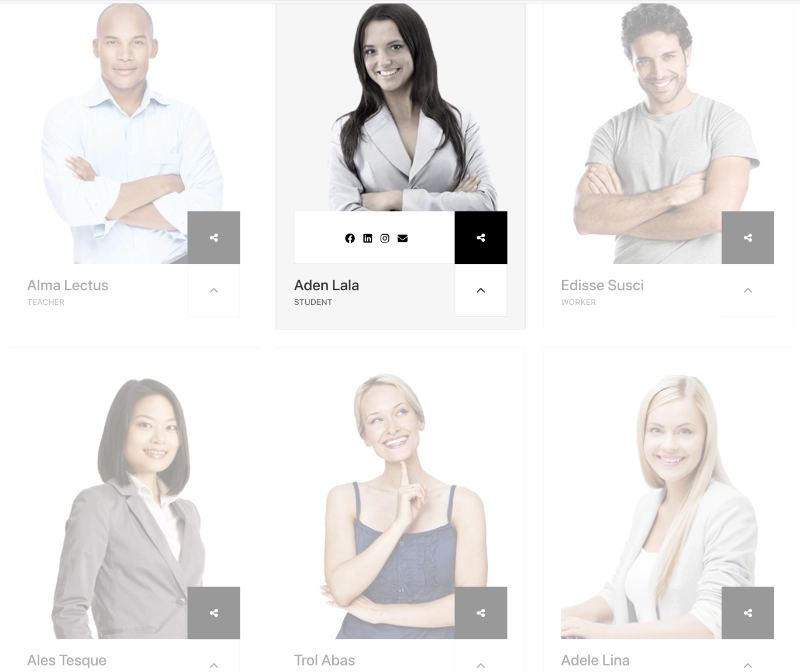
Prefer a steady overview? Standard mode arranges people in responsive columns and can add a category, tag, or title filter. Want a more dynamic presentation? Slider mode adds navigation, looping, autoplay, and controls for how many items appear at each screen size.
Desktop, tablet landscape, tablet portrait, mobile landscape, and mobile portrait each have their own layout settings, so a crowded desktop row does not have to become a crowded phone screen.
Help visitors find their people
Add a filter to make a growing team easier to explore.
In Standard mode, enable Show filter to add Isotope navigation above the grid. Visitors can select a label to narrow the displayed team items without leaving the page. Choose whether the filter sits on the right, in the center, or on the left.
For Articles, choose Categories or Tags as the source of filter labels. For Custom Items and Folder content, labels come from item titles. Slider mode does not display this filter, so choose Standard when direct browsing is important.
Example filter navigation
Example labels only. The available labels come from your selected content source.
A distinctive finishing touch
Shape the image, or change its whole mood.
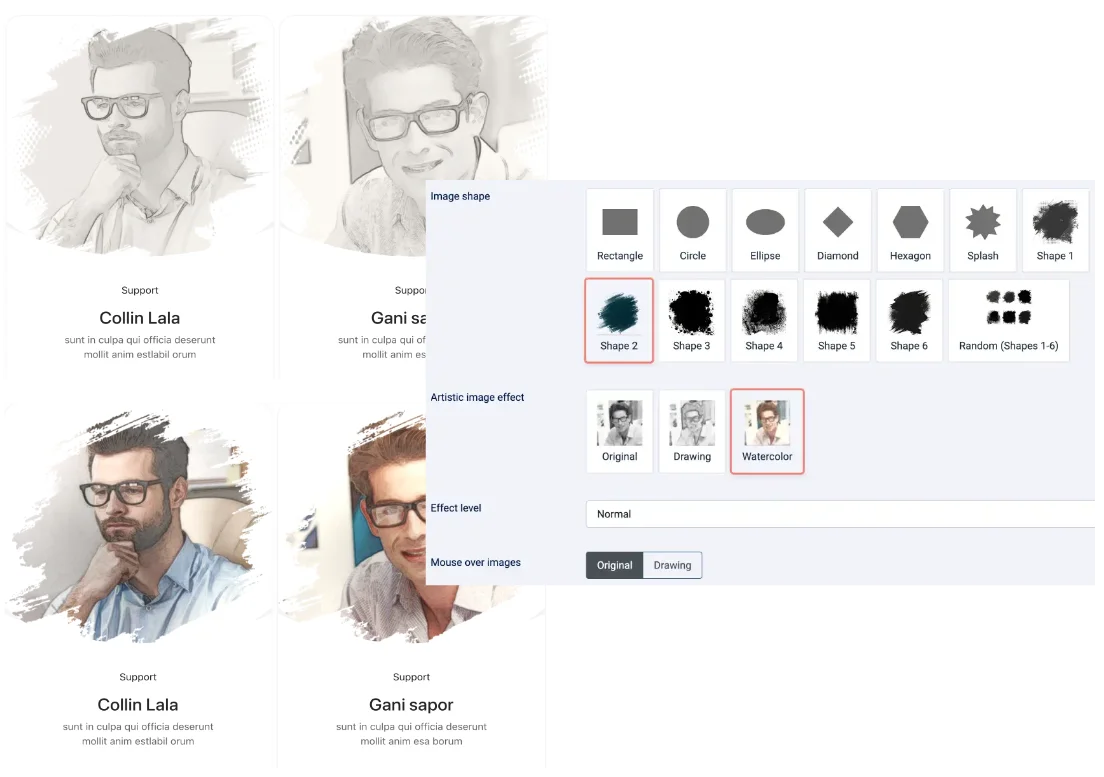
Keep portraits original, convert them to a pencil drawing, or choose the watercolor effect for translucent color washes and textured pigment. The effect level lets you adjust the result from soft to very strong.
Image shapes are a separate choice: circles, ellipses, diamonds, hexagons, splashes, six supplied masks, or a random mix. Combine a shape with an image effect to give the gallery a signature look.
The browser processes drawing effects on a canvas, and generated results are cached for reuse. Administrators can empty the drawing-effects cache from the module settings when they need to regenerate the images.
Make room for every contributor
A clearer, more considered way to introduce your team.
Bring member details, editorial content, and media together in a layout that works across devices. Choose the source and style that fit, refine the display, and let the people behind the work take center stage.